{: .no_toc }
Table of contents
{: .text-delta } - TOC {:toc}some This is Red Bold. text
Workflow management platform.
| Subject | Information |
|---|---|
| LINK | Docker + Airflow Setup |
| LINK | Airflow Core Concepts |
| LINK | Docker + Airflow (Windows Power Shell) Setup |
Gitbash> Navigate to folder |
CD airflow-tutorial/ |
Gitbash> List contents of folder |
LS |
Gitbash> Start Docker compose |
Docker-compose up |
Gitbash> Start Docker compose w/status view |
Docker-compose up -d |
Gitbash> Exit Docker compose |
Docker-compose down |
Gitbash> Navigate to different directory |
CD ENTIRE DIRECTORY |
Gitbash> Read file |
CAT FILENAME.EXTENSION |
| Powershell: Navigate to folder | Set-Location C:\\... |
| Powershell: Start Docker compose | Docker-compose up |
| Powershell: How to view contents of container | CD to directory of .yml and then in cmd prompt type:> docker psThen type > docker exec -it .YML FOLDERNAME\_webserver\_1 bash |
| Airflow UI : Add Connection | Conn ID:any\_nameConn Type: File (path)Extra: {"path": "/relative path in container"}Example: {"path": "/data"} |
Distribution + Conda package/environment Managerw
| Subject | Information |
|---|---|
| LINK | Conda Cheatsheet Ref. |
| List conda environments | Conda env list |
| Activate environment | Activate {ENVNAME} |
| Deactivate environment | deactivate |
| List packages | Conda List |
| Force 32-Bit & create new Environment | set CONDA_FORCE_32BIT=1 conda create -n py27_32 python=2.7 |
| Activate 32-bit | set CONDA_FORCE_32BIT=1 activate py27_32 |
| Create new Jupyter Notebook Kernel inside new Environment | Create Kernel Article |
IDE (Integrated Development Manager)
| Subject | Information |
|---|---|
| LINK | Setup Atom for Python |
| Run Script | Shft+Ctrl+B |
| Toggle top tab | Alt |
| Addons | Script, Autopep8, Minimap |
Cloud Run Functions
| Subject | Information |
|---|---|
| LINK | AWS Lambda with Python Video |
Microsoft Cloud
| Subject | Information |
|---|---|
| Use O365 Python | This link shows how to set up API permissions on Azure https://www.inkoop.io/blog/how-to-get-azure-api-credentials/ Use this one next to actually use in python https://pietrowicz-eric.medium.com/how-to-read-microsoft-outlook-calendars-with-python-bdf257132318 |
unix automation
| Subject | Information |
|---|---|
| LINK | bash resource |
batch file for windows automations
| Subject | Information |
|---|---|
| LINK | reference commands |
| turn echo off | @echo offthis makes it so every command is not shown verbose. |
| echo (print) | echo foo |
| get input | set /P VAR=input request: |
| use variable | %VAR% for input with spaces use: '%VAR%' |
| sleep | timeout /t 30 |
| open file | start FILENAME |
| comment | :: -or- REMonly difference is REM comments will be shown during execution |
Command Prompt for Windows
| Subject | Information |
|---|---|
| Go Back one folder | cd ..\ |
| Delete files in a directory | You can do this using del and the /S flag (to tell it to remove all files from all subdirectories): del /S C:\Path\to\directory\ source |
| Get Wifi Passwords | 1. Open CMD 2. netsh wlan show profile3. find the {WIFI NAME}4. netsh wlan show profile {WIFI NAME} key=clear |
Python Encryption Library
| Subject | Information |
|---|---|
| General Link | Encryption Youtube (VERY HELPFUL} |
| General Link | Introductory Cryptography Code |
| Covert string to bytes | https://www.educative.io/edpresso/how-to-convert-strings-to-bytes-in-python |
| Get environmental variables in py | https://www.nylas.com/blog/making-use-of-environment-variables-in-python/ |
Python Web Framework
| Subject | Information |
|---|---|
| General Link | Corey Shafer Django I Corey Shafer Django II |
| Pip Install | pip install Django |
| View version (CLI) | Python -m django --version RETURNS: 0.0.0 |
| View commands (CLI) | django-admin |
| Create project (CLI) | django-admin startproject PROJECT_NAME (cant use dash in name only underscore) Output: 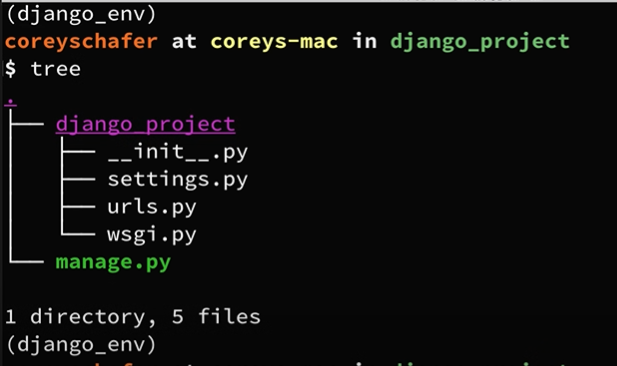 |
| Deploy on CPANEL: | Deploy Django on Shared Hosting |
| CREATE NEW DATABASE ENTRY AFTER MODEL IS ESTABLISHED: | Python Django Tutorial: Full-Featured Web App Part 10 - Create, Update, and Delete Posts |
Container based development and deployment
| Subject | Information |
|---|---|
| LINK | XXX |
| run container | docker run {container_name} |
| interactive terminal (ti) | docker run -ti {container_name} |
| stop or kill container | docker kill {container_name} |
| remove container | docker rm {container_name} |
Cloud File Sharing Application
| Subject | Information |
|---|---|
| New api key registration | 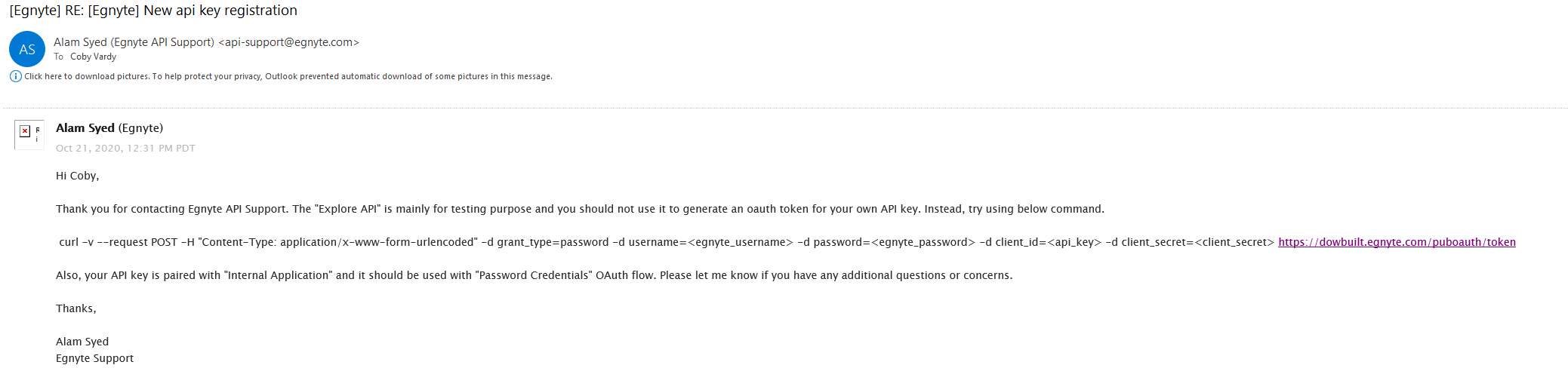 |
Open Source Codec Converter
| Subject | Information |
|---|---|
| convert .MOV to .MP4 | ffmpeg -i "IMG_3892.MOV" -vcodec h264 -acodec mp2 "IMG_3892.mp4"Source |
| Convert gif to mp4 | ffmpeg -f gif -i infile.gif outfile.mp4 source |
| Optimize a gif | ffmpeg -y -i input.mp4 -filter_complex "fps=5,scale=480:-1:flags=lanczos,split[s0][s1];[s0]palettegen=max_colors=32[p];[s1][p]paletteuse=dither=bayer" output.gif stackoverflow source |
Online UI / UX Platform
| Subject | Information |
|---|---|
| LINK | Build It in Figma: Design a responsive website navigation - Part 1 |
| Responsive design | A design that can adapt to different screen sizes using CSS. |
| Autolayout | Retain relationship between objects by creating a 'frame' SHIFT + A |
| Add Item to Frame | Add an item to an existing frame. Select Frame then CTRL +V It will ad the item into the frame |
| Positioning of objects in Autolayout | Use the 3-bar icon to relocate objects within an autolayout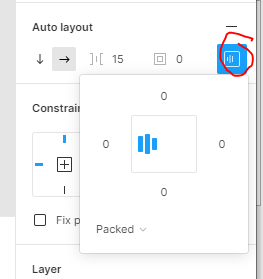 |
| Object View - change name of cavases and other objects like frames | 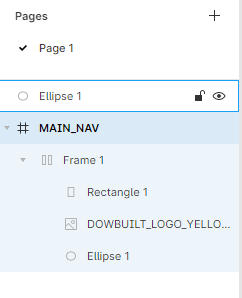 |
| Create Component (like CAD BLOCK) | 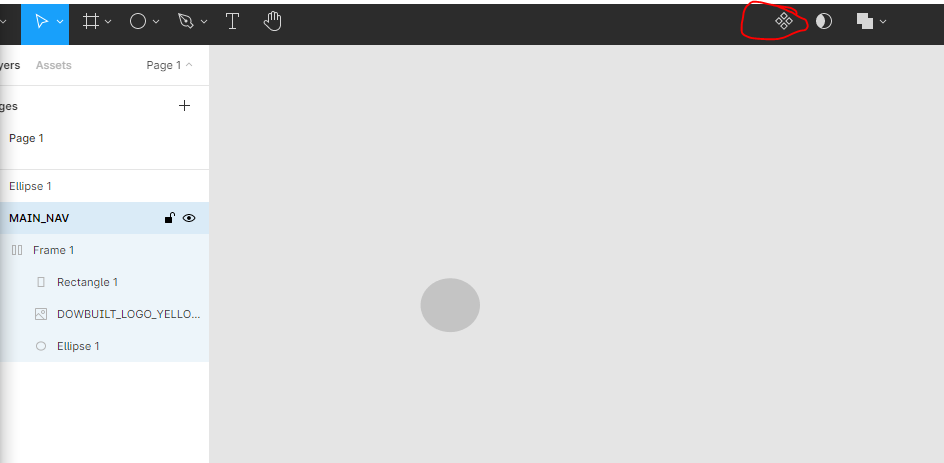 |
| export to Google Slides | https://www.figmatic.com/tutorials/how-to-export-presentations-from-figma-to-google-slides-using-pitchdeck/ Figma Tutorial: Export slide deck presentations from Figma to Google Slides |
| Variants | Component Sets = Variants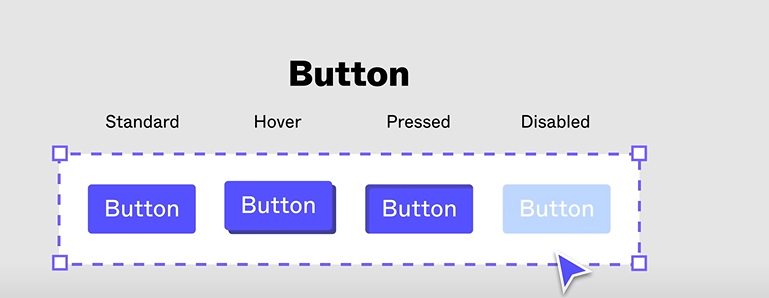 Multi-Dimensional 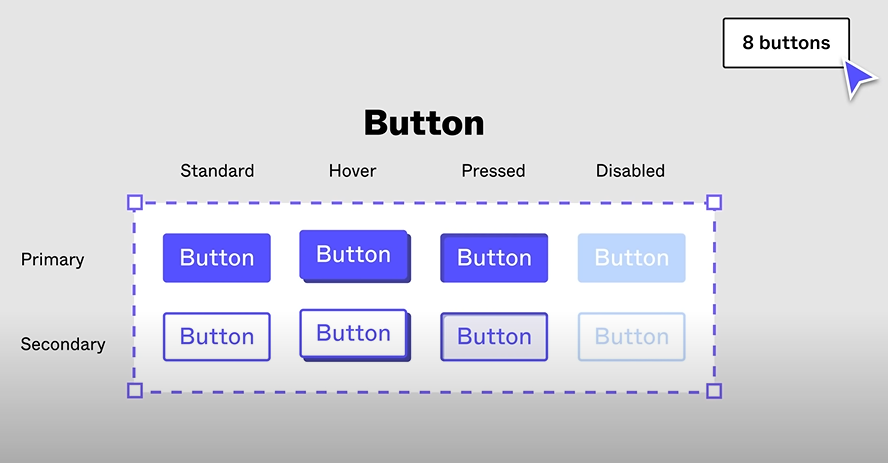 |
| Create Variants | 1. Create initial frame for first component (see here for tut.) 2. Rename using naming convention 3. Click on first frame and press 'Ctrl + Alt + K' to convert to component 4. Now that it's a component you have the option to create a variant in the side bar. 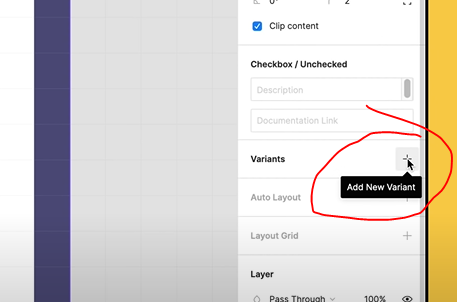 |
| Variant Naming Convention | Primary Name / Property 01 / Property 02 / Property … |
XXX
| Subject | Information |
|---|---|
| LINK | Github Tutorial For Beginners - Github Basics for Mac or Windows & Source Control Basics |
| Getting stuck during commit | Esc + :wq + enter reference |
| Gitignore | https://git-scm.com/docs/gitignore |
| markdown (for README.md) | https://guides.github.com/features/mastering-markdown/ |
| Markdown Folder Structure (for README.md) | https://newbedev.com/representing-directory-file-structure-in-markdown-syntax |
| Git Push | git add --all git commit -m "NAME YOUR COMMIT APPROPRIATLEY" git push |
| Diagram | 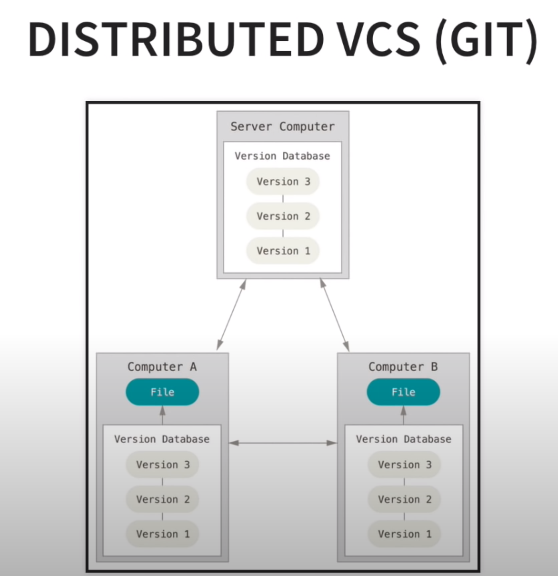 |
XXX
| Subject | Information |
|---|---|
| LINK | XXX |
| XXX | XXX |
| XXX | XXX |
XXX
| Subject | Information |
|---|---|
| LINK | XXX |
| Calculated Column | def func(x): return x*100data = df['col'].apply(func)source(ctrl+f 'simple solution') |
| Add Column (in specific location) | # Third position would be at index 2, because of zero-indexing. df.insert(2, 'new-col', data)source |
| Series.map() vs. df.applymap() vs. df/series.apply() | Series.map = element wise for series df.applymap = element wise in dataframe .apply = df or series, complex elementwise or aggregation source |
XXX
| Subject | Information |
|---|---|
| LINK | XXX |
| XXX | XXX |
| XXX | XXX |
Link: https://youtu.be/0mSBRAv8y5A
Link: https://github.com/coder/code-server/blob/main/docs/guide.md
sudo apt update -ysudo apt upgrade -y- go to: https://github.com/coder/code-server/
- fine the latest release on right hand side and click (as of 2022.07.16 == V4.5.0)
- find the "code-server_{RELEASE}_l_amd64.deb", right-click, copy URL address
wget {URL ADDRESS}sudo dpkg -i code-server_4.5.0_amd64.deb#update for your versioncode-server --bind-addr 0.0.0.0:80#start up, can change port if you want- go into browser with code-server running and type
{IP}:{PORT} - it will ask for password, to access your password
sudo cat ~/.config/code-server/config.yaml#See passwordsudo nano ~/.config/code-server/config.yaml#change password
Regular Expressions, text manipulation and query
| Metacharacters | Function |
|---|---|
| . | Any Character Except New Line \d - Digit (0-9) |
| \D | Not a Digit (0-9) |
| \w | Word Character (a-z, A-Z, 0-9, _) |
| \W | Not a Word Character |
| \s | Whitespace (space, tab, newline) |
| \S | Not Whitespace (space, tab, newline) |
| \b | Word Boundary |
| \B | Not a Word Boundary |
| ^ | Beginning of a String |
| $ | End of a String |
| [] | Matches Characters in brackets |
| [ ^ ] | Matches Characters NOT in brackets |
| | | Either Or |
| ( ) | Group |
| Quantifiers: | |
| * | 0 or Mor\D |
| + | 1 or More |
| ? | 0 or One |
| {3} | Exact Number |
| {3,4} | Range of Numbers (Minimum, Maximum) |
| Sample Regexs | |
| [a-zA-Z0-9_.+-]+@[a-zA-Z0-9-]+.[a-zA-Z0-9-.]+ | https://github.com/CoreyMSchafer/code_snippets/blob/master/Python-Regular-Expressions/snippets.txt |
| Subject | Information |
|---|---|
| LINK | XXX |
| Import reg.ex. | import re |
| Raw String | r'string' EXAMPLE: print(r'\tTab') note: will ignore backslashes () |
| Compile Method | pattern = re.compile(r'abc') matches = pattern.finditer(text_to_search) for match in matches: print(match) -->RETURNS: <_sre.SRE_Match object; span=(1,4), match='abc'> span=(beginning of match,end of match) |
| String Slicing | EXAMPLE: text_to_search[1:4] RETURNS: text from characters 1 to 3 |
| [METACHARACTERS](onenote:#REGULAR EXPRESSIONS§ion-id={48406E99-CE54-4E9D-BFC7-DDC98114CD84}&page-id={DD3847D3-B6A9-444E-A303-E9B1913C1467}&object-id={54D30842-CF1E-4755-8569-9BFF87F1F795}&6E&base-path=https://schuchartdow-my.sharepoint.com/personal/coby_dowbuilt_com/Documents/Coby @ Work/CODING.one) (NEED TO BE ESCAPED) | `. ^ $ * + ? { } [ ] \ |
| EXAMPLE SEARCH FOR PHONE NUMBER | pattern = re.compile(r'\d\d\d.\d\d\d.\d\d\d\d') matches = pattern.finditer(text_to_search) for match in matches: print(match) RETURNS: <_sre.SRE_Match object; span=(00,00), match='000-000-0000'> |
| USE A CHARACTER SET use brackets to specify characters to search for [] | pattern = re.compile(r'\d\d\d[-.]\d\d\d[-.]\d\d\d\d')matches = pattern.finditer(text_to_search) for match in matches: print(match)RETURNS: <_sre.SRE_Match object; span=(00,00), match='000-000-0000'> NOTE: will only return phone numbers with a - or . At that point in expression. EXAMPLE 2: pattern = re.compile(r'[89]00[-.]\d\d\d[-.]\d\d\d\d') RETURN NOTE: only match 800 or 900 numbers at beginning |
| USE A CHARACTER SET WITH RANGE use brackets to specify characters to search for [0-9] or [a-c] | EXAMPLE 1:pattern = re.compile(r'[0-5]') RETURN NOTE: only match any number between 0 and 5 EXAMPLE 2: pattern = re.compile(r'[a-z]') RETURN NOTE: only match any letter between a and z EXAMPLE 3: pattern = re.compile(r'[a-zA-Z]') RETURN NOTE: only match any letter between a and z or between A and Z EXAMPLE 4: NEGATE ^ pattern = re.compile(r'^[a-zA-Z]') RETURN NOTE: only match any letter that is NOT between a and z or between A and Z |
| USE QUANTIFIERS ***** - 0 or More + - 1 or More ? - 0 or One {3} - Exact Number {3,4} - Range of Numbers (Minimum, Maximum) | EXAMPLE 1: pattern = re.compile(r'**\d**{3}**.\d**{3}**.\d**{4}')RETURN NOTE: only match 3-digits, any character, 3-digits, any character, 4-digits EXAMPLE 2: pattern = re.compile(r'**Mr\.**?**\s[A-Z]\w***') RETURN NOTE: only matches 'MR' then 0 or 1 '.' (periods), then a space, then an upper case letter between A-Z then 0 or more word characters |
| USE GROUPS use parentheses to specify characters to search for different patters (a|b) or (1|2) | EXAMPLE 1: ` pattern = re.compile(r'M(r |
| EXAMPLE SEARCH FOR EMAIL | EXAMPLE 1: ` pattern = re.compile(r'[a-zA-Z0-9.-]+@[a-zA-Z-]+.(com |
| EXAMPLE SEARCH FOR URL use parentheses to create groups within the url to pull out of later () *note: Parentheses enlarged in example for clarity of usage. | EXAMPLE 1: pattern = re.compile(r'https?://(www.)?(\w+)(\.\w+)')RETURN NOTE: only matches 'http' then 0 or 1 's', then '://', then 0 or 1 'www.' then 1 or more \word characters then a '.' followed by one or more word characters. |
| GROUP METHOD, PULL OUT SPECIFIC GROUPS FROM EXPRESIONS use parentheses to create groups within the url to pull out of later () *note: Parentheses enlarged in example for clarity of usage. | EXAMPLE: GROUP 0 pattern = re.compile(r'https?://(www.)?(\w+)(\.\w+)')matches = pattern.finditer(urls) for match in matches: print(match.group(0)) RETURN NOTE: group(0) is the entire expression So it would be: https://www.google.com http://coreyms.com https://youtube.com https://www.nasa.gov EXAMPLE: GROUP 1 pattern = re.compile(r'https?://(www.)?(\w+)(\.\w+)') matches = pattern.finditer(urls) for match in matches: print(match.group(1))RETURN NOTE: group(1) is the optional group noted in the expression www. None None www. EXAMPLE: GROUP 2 pattern = re.compile(r'https?://(www.)?(\w+)(\.\w+)') matches = pattern.finditer(urls) for match in matches: print(match.group(2)) RETURN NOTE: group(2) is the second group noted in the expression google coreyms youtube nasa EXAMPLE: GROUP 3 pattern = re.compile(r'https?://(www.)?(\w+)(\.\w+)')matches = pattern.finditer(urls) for match in matches:print(match.group(3)) RETURN NOTE: group(3) is the thrid group noted in the expression .com .com .com .gov |
| SUB method REFERENCING GROUPS use sub method to replace items from patterns. *note: Parentheses enlarged in example for clarity of usage. | EXAMPLE: SUB URLS pattern = re.compile(r'https?://(www.)?(\w+)(\.\w+)') subbed_urls = pattern.sub(r'\2\3', urls)print(subbed_urls)RETURN NOTE: subbed urls: google.com coreyms.com youtube.com nasa.gov |
| .FINDALL METHOD | EXAMPLE 1: `pattern = re.compile(r'M(r |
| .MATCH METHOD | EXAMPLE 1: pattern = re.compile(r'Start') matches = pattern.match(sentence) RETURN NOTE: will only return matches at BEGINNING OF STRING. |
| .SEARCH METHOD | EXAMPLE 1: pattern = re.compile(r'a') matches = pattern.search(sentence) RETURN NOTE: will only return first match that it finds. |
| USING FLAGS | EXAMPLE 1: pattern = re.compile(r'start', re.IGNORECASE) matches = pattern.search(sentence) RETURN NOTE: will ignore the case of any characters in string and return first match. EXAMPLE 2: pattern = re.compile(r'start', re.I) matches = pattern.search(sentence) RETURN NOTE: will ignore the case of any characters in string and return first match. |
| Use .start() and .end() to extract text | ``import re<br /><br />##string to search<br />SEARCH_STRING = {PLACE STRING HERE}`##start and finish extraction `start_regex = re.compile(r'STARTING_STRING')` `start = [i for i in start_regex.finditer(SEARCH_STRING)][0].end()` `finish_regex = re.compile(r'&scope')` `finish = [i for i in finish_regex.finditer(SEARCH_STRING)][0].start()` ##result `RESULT = SEARCH_STRING[start:finish]` |
graph LR;
    A(Receive Drawings / Models)-->B(Model / Coordinate MEPs);
    B-->C{Submits};
    C-->D(Subcontractor / Design Feedback);
    D-->B;
    D-->E{Approval}
    E-->F(Approved MEP Drawings)
    E-->G(Framing Coordination / Shops)